
Showing posts with label Game. Show all posts

Wednesday, July 13, 2022

// //

How To Join Minecraft Multiplayer Server (Java/Windows/Bedrock/MCPE)?

Minecraft is indeed one of the most popular PC game. It do get update regularly. After the release of mobile version, it get immense popularity. However, it not due to its addictive gameplay but allow players to play with others.

Nevertheless, to join multiplayer you must have few details to input before joining a server. Joining multiplayer in Java and mobile have something uncommon. In case of Java client, you can enter a server without imputing port but for mobile or bedrock players IP is must. Here is a tutorial that you can follow to enter Minecraft multiplayer.


How To Enter Minecraft Multiplayer with Java Client

1. Click on multiplayer in your Java Client Screen.


2. A window will pop-up, click on 'Add Server' button.


3. You now need to fill the details of the server where you willing to join. In my case, its BeastSMP. One of the upcoming awesome multiplayer Minecraft community. Done forget to click 'Done' after completing the form.


4. If your details are correct, you will see the server name in your multiplayer list. Just select the server and click on Join button. If the server is free to join, you will get into game immediately. However, in some cases you need to get whitelisted first. If you willing to join BeastSMP then you can join their discord and ask for Whitelist. BeastSMP Discord: https://discord.gg/phGNRm98uR


How To Enter Minecraft Multiplayer with Windows/Bedrock/MCPE Client

1. Click/Tap on the Server tab in your Play screen.
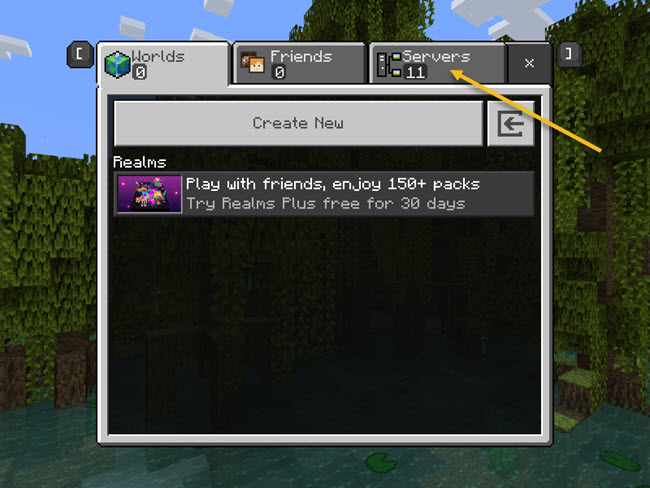

2. Scroll to the end of the screen and you will see 'Add Server' button. Click/Tap on it.


3. Now input the server details. You must add the port to enter the server. In our case its 25565 but for you it might be difference. Click on 'Save' button once done.


4. Now select the server from your server list and click on 'Join Server'.


That's it. I hope you enjoyed the guide and its do help you to join your favorite Minecraft multiplayer server for Free.


Read More

Sunday, December 30, 2018

// //

Download & Install Garena Free Fire – Winterlands in PC - Windows 7/8/10 & Mac

The ultimate survival shooter game Garena Free Fire – Winterlands is now available on Google play store. You can easily have the game in your Windows and Mac computer.

In this winter enjoy the Winterlands update of Garena Free Fire. In this game you play against 49 other players for 10 minutes in a remote island. You must survive at the end of the game. Players freely choose their starting point with their parachute, and aim to stay in the safe zone for as long as possible. Drive vehicles to explore the vast map, hide in trenches, or become invisible by proning under grass. Ambush, snipe, survive, there is only one goal - to survive.

The game is developed by GARENA INTERNATIONAL and can be found under Action category at Play Store game section.

Here are few key features:

  • Search for weapons, stay in the play zone, loot your enemies and become the last man standing. Along the way, go for airdrops while avoiding airstrikes to gain that little edge against other players.
  • Within 10 minutes, a new survivor will emerge. Will it be you?
  • Create squads of up to 4 players and establish communication with your squad at the very first moment. Command your friends to victory and be the last team standing.
  • Easy to use controls and smooth graphics promises the best survival experience you will find on mobile.

If you are looking to install Garena Free Fire in PC then read the rest of the article where you will find 2 ways to install Garena Free Fire in PC using BlueStacks and Nox app player. You can always check out the method with other Android emulator.

Garena Free Fire – Winterlands

Download and Install Garena Free Fire in PC (Windows and Mac OS)


The following are the 2 methods that you can use to install Garena Free Fire app on your Windows or Mac computer.

  • Install Garena Free Fire in PC using Nox App Player
  • Install Garena Free Fire in PC using BlueStacks App Player

1. Install Garena Free Fire in PC using Nox App Player


  • Download and install Nox App Player on your PC.
  • Open Nox and then login to Google account.
  • Now open Play Store that you can find under Google folder.
  • Search "Garena Free Fire" on Play Store search bar and install the app.
  • Once installation completed, you will be able to play Garena Free Fire on your PC.

2. Install Garena Free Fire in PC using BlueStacks App Player


  • Download and install BlueStacks on your PC.
  • Launch Nox and then login to Google account.
  • Now open Play Store that you can find under System app folder.
  • Search "Garena Free Fire" on Play Store search bar and install the app.
  • Once installation completed, you will be able to play Garena Free Fire on your PC.

You can always download latest Garena Free Fire apk and install it on your Android emulator (Nox player, Bluestacks etc.) by double clicking on it. The latest Garena Free Fire app version is 1.25.3.
Read More

Monday, December 17, 2018

// //

Download & Install Carrom Pool in PC - Windows 7/8/10 & Mac

The famous indoor game Carrom Pool is now available on Google play store. You can easily have the game in your Windows and Mac computer.

Carrom Pool is an easy-to-play multiplayer board game. All you have to do, pot all your pieces before your opponent. Customise your pieces with a huge variety of unlock-able items! You can play the game offline as well as with online opponent. You can enjoy Carrom Pool by playing against your friends.

The game is developed by Miniclip.com and can be found under Sports category at Play Store game section.

Here are few key features:

  • Play multiplayer matches in 2 game modes: Classic Carrom and Disc Pool
  • Play with your friends.
  • Play around the world in glorious arenas.
  • Smooth controls and realistic physics.
  • Unlock a wide range of strikers and pucks.
  • Supports offline play.
  • Leaderboard and Leagues are coming soon.

If you are looking to install Carrom Pool in PC then read the rest of the article where you will find 2 ways to install Carrom Pool in PC using BlueStacks and Nox app player. You can always check out the method with other Android emulator.


Download and Install Carrom Pool in PC (Windows and Mac OS)


The following are the 2 methods that you can use to install Carrom Pool app on your Windows or Mac computer.

  • Install Carrom Pool in PC using Nox App Player
  • Install Carrom Pool in PC using BlueStacks App Player

1. Install Carrom Pool in PC using Nox App Player


  • Download and install Nox App Player on your PC.
  • Open Nox and then login to Google account.
  • Now open Play Store that you can find under Google folder.
  • Search "Carrom Pool" on Play Store search bar and install the app.
  • Once installation completed, you will be able to play Carrom Pool on your PC.

2. Install Carrom Pool in PC using BlueStacks App Player


  • Download and install BlueStacks on your PC.
  • Launch Nox and then login to Google account.
  • Now open Play Store that you can find under System app folder.
  • Search "Carrom Pool" on Play Store search bar and install the app.
  • Once installation completed, you will be able to play Carrom Pool on your PC.

You can always download latest Carrom Pool apk and install it on your Android emulator (Nox player, Bluestacks etc.) by double clicking on it. The latest Carrom Pool app version is 1.0.2.
Read More